
You’ve cleared all three levels of CA exams. You’ve put in the articleship hours. Also, you’ve worked on audits for some of the biggest names in the industry. So when you apply for that senior associate role at a Big Four firm, getting an interview should be a formality, right?
Weeks go by. Nothing. Not even a rejection email.
Your resume never reaches human eyes
You start questioning everything. Maybe I need more experience? Maybe my articleship firm wasn’t prestigious enough? Here’s the uncomfortable truth: your resume probably never made it to a human recruiter. It got filtered out by a robot that couldn’t read your beautifully designed Canva CV.
According to LinkedIn data shared by the Social Security Administration, nearly 99% of Fortune 500 companies use Applicant Tracking Systems (ATS) to screen resumes. Studies suggest that up to 75% of resumes get rejected by these systems before a human ever sees them. For Chartered Accountants in India, this rejection rate might be even higher because of how we typically format our credentials.
That two-column Canva template with the elegant sidebar? The one with your ICAI logo and color-coded skill bars? It looks professional to you. To an ATS, it’s unreadable noise.
This article will show you exactly why your resume is getting rejected by ATS software and how to fix it. You’ll learn the 7 specific parsing errors that kill CA resumes, see the CA-specific formatting mistakes you’re probably making, and get a 5-minute test you can run right now to check if your resume is ATS-friendly.
What is ATS and how does it work?
An Applicant Tracking System (ATS) is software that companies use to manage job applications. Think of it as a digital librarian that reads every resume submitted, extracts key information, and files it into a database. The system then matches candidates to job requirements and ranks them for recruiters.
Here’s the process in simple terms: when you submit your resume, the ATS parser extracts text and categorizes it into specific fields like name, contact information, work experience, education, skills, and certifications. This parsed data gets stored in a structured format that recruiters can search and filter.
The problem? ATS parsers read documents left-to-right, top-to-bottom, like you’re reading this sentence. When you use multiple columns, tables, or creative layouts, the parser jumps between columns and scrambles your information. What looks organized to you becomes gibberish to the machine.
When parsing fails, several things can happen. Your work experience might get categorized as education. The certifications might disappear entirely. Your contact details might show up jumbled in the middle of your skills section. Or the system might simply fail to read your resume at all, treating it as a blank document.
The result? Your application tanks in the ranking, or gets rejected automatically, regardless of how qualified you actually are.
7 parsing errors that get resumes rejected
Understanding what causes parsing errors is the first step to avoiding them. Here are the seven most common mistakes that prevent ATS software from reading your resume correctly.
1. Multi-column layouts and tables
Canva templates love two and three column designs. They look clean and modern. The problem is that ATS software reads across the page, not down columns. When you have your contact info in a left sidebar and your experience in the main column, the parser reads them together, line by line.
CA example: You create a neat table showing your certifications:
| Credential | Body | Year |
|---|---|---|
| CA Final | ICAI | 2023 |
| CA Inter | ICAI | 2021 |
The ATS might read this as: “Credential Body Year CA Final ICAI 2023 CA Inter ICAI 2021” and have no idea what any of it means.
Fix: Use a single-column layout. List certifications one per line in plain text format.
2. Headers and footers with contact information
It seems logical to put your name and phone number in a header for a clean, consistent look across pages. Many professional templates do exactly this. The problem? Most ATS software completely skips headers and footers when parsing.
CA example: You put your LinkedIn profile URL in the footer so it appears on every page. The recruiter never sees it because the ATS ignored that section entirely.
Fix: Put all contact information in the main body of your resume at the top, not in header or footer sections.
3. Fancy fonts and decorative characters
Script fonts, condensed fonts, and stylized typefaces might express your personality, but ATS parsers can only reliably read standard fonts. When you use decorative fonts, the system might misread characters or fail to extract text altogether.
CA example: You use an accent in “Resume” to make it look sophisticated, but the ATS reads “r?sum?” or “rAsumA” instead of recognizing the word.
Fix: Stick to standard fonts: Arial, Calibri, Georgia, Helvetica, or Times New Roman. Use 10-12 point size. Save your creativity for the interview.
4. Inconsistent date formats
This one catches a lot of CAs because we often have complex educational and professional timelines. Mixing formats like “March 2020,” “03/2020,” and “3-20” in the same document confuses ATS duration calculations.
CA example: Your resume shows:
- CA Foundation: May 2019
- CA Intermediate Group 1: 11/2020
- CA Intermediate Group 2: May-21
- CA Final: 5/2023
The ATS can’t calculate your timeline correctly and might flag inconsistencies.
Fix: Pick ONE date format and use it consistently throughout. Either “MM/YYYY” (05/2023) or “Month Year” (May 2023). Never mix them.
5. Graphics, logos, and images
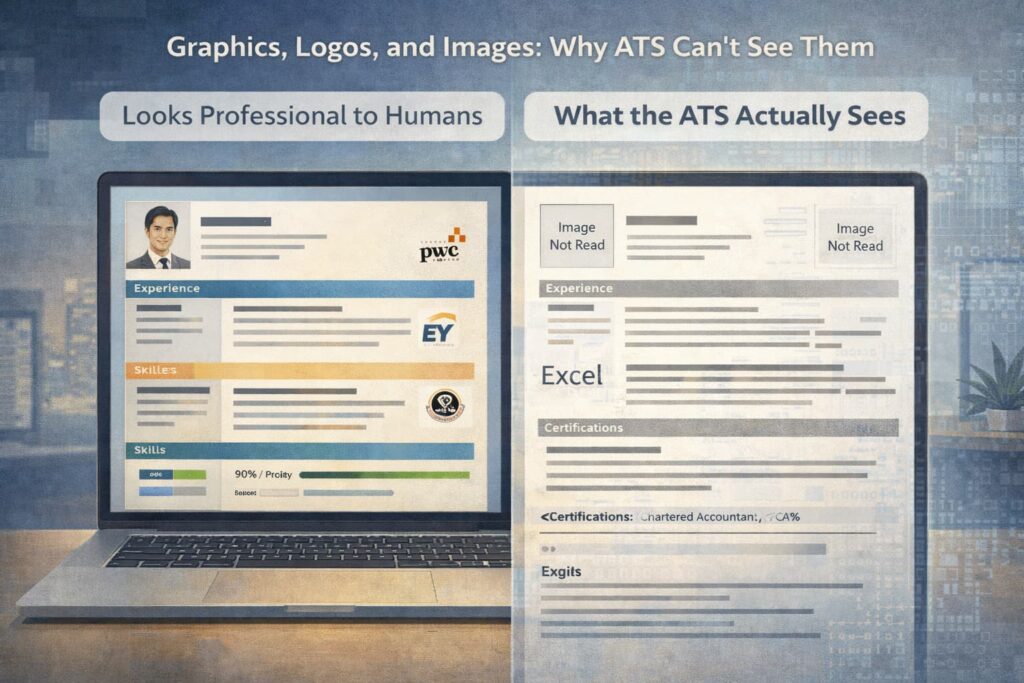
Company logos next to each employer. Your professional headshot in the corner. Skill bar charts showing your Excel proficiency at 90%. Colored backgrounds and decorative borders. All of these are invisible to ATS parsers.
CA example: You place the ICAI logo next to your CA certification to make it look official and credible. The ATS sees blank space where the logo is and might even fail to properly parse the text around it.
Fix: Remove all graphics and images from your resume. Use text-only formatting. You can add visual elements to a separate portfolio or your LinkedIn profile.
6. Wrong file format (PDF vs DOCX)
Many CAs save their Canva resumes as PDFs, thinking this preserves the design. The problem is that some older ATS systems struggle with PDFs, especially image-based PDFs or those with embedded graphics and text boxes.
CA example: You create your resume in Canva’s editor and download it as a PDF. What you’ve actually downloaded is essentially an image file with text overlaid. When the ATS tries to parse it, it either fails completely or extracts garbled text.
Fix: Submit your resume as a .docx file unless the job posting specifically requests a PDF. Word documents are universally compatible with ATS software. If you must use PDF, make sure it’s a text-based PDF created from Word, not from a design tool.
7. Non-standard section headers
ATS software looks for specific section labels to categorize your content. When you get creative with header names, the system doesn’t know where to file your information.
CA example: Instead of “Work Experience,” you use “Professional Journey” or “Where I’ve Made an Impact.” The ATS can’t identify this as your work history section and might skip it entirely or dump the content into a miscellaneous category.
Fix: Use standard section headers that ATS software recognizes:
- Work Experience or Professional Experience (not “Career Highlights” or “My Journey”)
- Education (not “Academic Background” or “Learning Path”)
- Skills (not “What I Bring to the Table”)
- Certifications (not “Credentials & Achievements”)
Create an ATS-friendly resume from our Resume Builder.
CA-specific formatting that breaks ATS
Generic ATS advice covers the basics, but Chartered Accountants face unique resume challenges that most career guides don’t address. Let’s look at the specific formatting issues that affect CA resumes.
Certification formatting
CAs often have multiple credentials to showcase: CA, CA(A), CA(F), CPA, CMA. The temptation is to create a visual table or use special formatting to display these prominently. This approach backfires with ATS systems.
ATS-hostile format:
+——+ | CA Final | ICAI | 2023 | +————+
+——+ | CPA | AICPA | 2024 | +————+
ATS-friendly format:
Certifications Chartered Accountant (CA), Institute of Chartered Accountants of India (ICAI), 2023 Certified Public Accountant (CPA), American Institute of CPAs (AICPA), 2024 CA Intermediate – Completed, June 2021
The plain text version might look less elegant, but the ATS can actually read and categorize it correctly.
Exam tracking challenges
Many CAs list their exam progression, especially if they cleared exams in multiple attempts or groups. Different date formats and status indicators across entries create parsing confusion.
Fix: Use consistent formatting for all exam entries. Include a clear status (Completed, Passed, Cleared) and stick to one date format throughout.
Regulatory abbreviations
ICAI, NFRA, IndAS, SEBI, MCA, these abbreviations are second nature to anyone in Indian accounting. But generic ATS systems built for global markets may not recognize them.
Fix: Spell out abbreviations on first use. Write “Institute of Chartered Accountants of India (ICAI)” the first time, then use “ICAI” in subsequent mentions. This helps both ATS parsing and human recruiters who might not be familiar with Indian regulatory bodies.
Credential acronyms
Simply writing “CA” assumes the ATS knows what it means. In a global context, “CA” could mean Chartered Accountant (India), Chartered Accountant (UK/Australia), or even California.
Fix: Always use both forms: “Chartered Accountant (CA)” or “CA (Chartered Accountant).” This ensures the ATS captures the keyword whether it’s searching for the acronym or the full term.
The 5-minute ATS resume format test
You don’t need to guess whether your resume will parse correctly. Here’s a simple test you can run in five minutes that shows exactly what an ATS sees when it reads your document.
The Notepad test:
- Open your resume in Microsoft Word (or whatever program you used to create it)
- Select all the content (Ctrl+A on Windows, Cmd+A on Mac)
- Copy the selection (Ctrl+C or Cmd+C)
- Open Notepad (Windows) or TextEdit in plain text mode (Mac)
- Paste the content (Ctrl+V or Cmd+V)
- Review what appears
What to look for:
If your resume is ATS-friendly, the pasted text should read logically from top to bottom. Your sections should be in order and contact info should be at the top. Your work experience should flow chronologically. Dates should make sense.
Red flags that indicate parsing problems:
- Text appearing in wrong order: This is the telltale sign of column layout problems. If your skills section shows up in the middle of your work experience, the ATS will see the same jumbled mess.
- Missing sections: If entire chunks of your resume disappear, you likely have header/footer issues or content inside text boxes that Notepad (and ATS systems) can’t read.
- Garbled characters: Strange symbols, question marks, or unreadable text indicate font or special character issues.
- Dates not making sense: If your dates are scattered or appear out of order, your formatting is confusing the extraction process.
What to do if your resume fails the test:
If your resume comes out jumbled in Notepad, an ATS will have the same problem. You’ll need to reformat using a single-column layout with standard fonts and plain text formatting.
The Notepad test is a good starting point, but it doesn’t catch everything. For a complete analysis of how ATS systems will parse your resume, you need a tool that simulates actual ATS parsing and identifies specific errors.
Test your ATS resume format
The Notepad test gives you a quick reality check, but professional ATS parsing analysis goes deeper. It identifies specific formatting issues, flags missing sections, and shows you exactly what recruiters see in their dashboard when your resume gets processed.
Here’s what you should know before your next application:
Stop guessing why you’re not getting callbacks. If you’ve applied to dozens of positions without hearing back, the problem likely isn’t your qualifications. It’s that your resume isn’t making it past the automated screening. Most rejections happen silently, with no feedback, no explanation, just silence.
The design vs. parse-ability trade-off is real. You can have a resume that looks stunning or one that gets read by ATS systems. With some effort, you can have both, but it requires understanding what breaks parsing and what doesn’t. The Resume Scorer tool shows you exactly what ATS software sees when it reads your resume.
Every format error costs you opportunities. Each job application that fails ATS parsing is a wasted opportunity. If you’re applying to 50 positions with a resume that has parsing errors, you might be getting rejected from 35-40 of them before a human ever sees your credentials.
Use the Resume Scorer tool to test your CV against ATS before your next application. See the parsing errors before recruiters do. Know exactly what to fix so your CA credentials actually reach the people making hiring decisions.
Your qualifications earned you the CA designation. Make sure your resume actually communicates that to the people who matter.
Create an ATS-friendly resume from our Resume Builder.
Also read: ICAI Campus vs. Off-Campus Placement: Where Do the Best Packages Come From?
Frequently Asked Questions
Q.1 Why is my ATS resume format for CA getting rejected?
A1: The most common reason CA resumes get rejected by ATS isn’t lack of qualifications, it’s formatting issues. Multi-column layouts, tables for certifications, fancy fonts, inconsistent date formats, and graphics like the ICAI logo all prevent ATS software from correctly parsing your information. Even if you’re perfectly qualified, the system can’t see that if it can’t read your resume.
Q.2 How do I know if my ATS resume format for CA is friendly?
A2: Run the Notepad test: copy your entire resume and paste it into a plain text editor. If the content appears jumbled, out of order, or with missing sections, ATS systems will have the same problems. For more detailed analysis, use an ATS resume scoring tool that simulates actual parsing and identifies specific errors in your formatting.
Q.3 What file format should I use for an ATS resume format for CA applications?
A3: DOCX (Word document) is the safest choice for ATS compatibility. While many modern systems can handle PDFs, older ATS software struggles with them, especially if the PDF contains images, text boxes, or was created from design tools like Canva. Only submit as PDF if the job posting specifically requests that format.
Q.4 Can I use Canva for an ATS-friendly resume format for CA?
A4: You can, but with significant limitations. Avoid Canva’s multi-column templates, sidebar layouts, skill bar charts, and decorative elements. Use only single-column templates with standard fonts and no graphics. Even then, test the output using the Notepad method before submitting. For the most reliable ATS parsing, creating your resume directly in Word is safer.
Q.5 Do CA certifications need special ATS resume format considerations?
A5: Yes. Always spell out abbreviations on first use, like “Institute of Chartered Accountants of India (ICAI)” rather than just “ICAI.” Avoid using tables to list certifications. Use consistent date formats for all exam entries. Include both the acronym and full form of your designation: “Chartered Accountant (CA)” ensures the ATS captures the keyword regardless of what it’s searching for.